
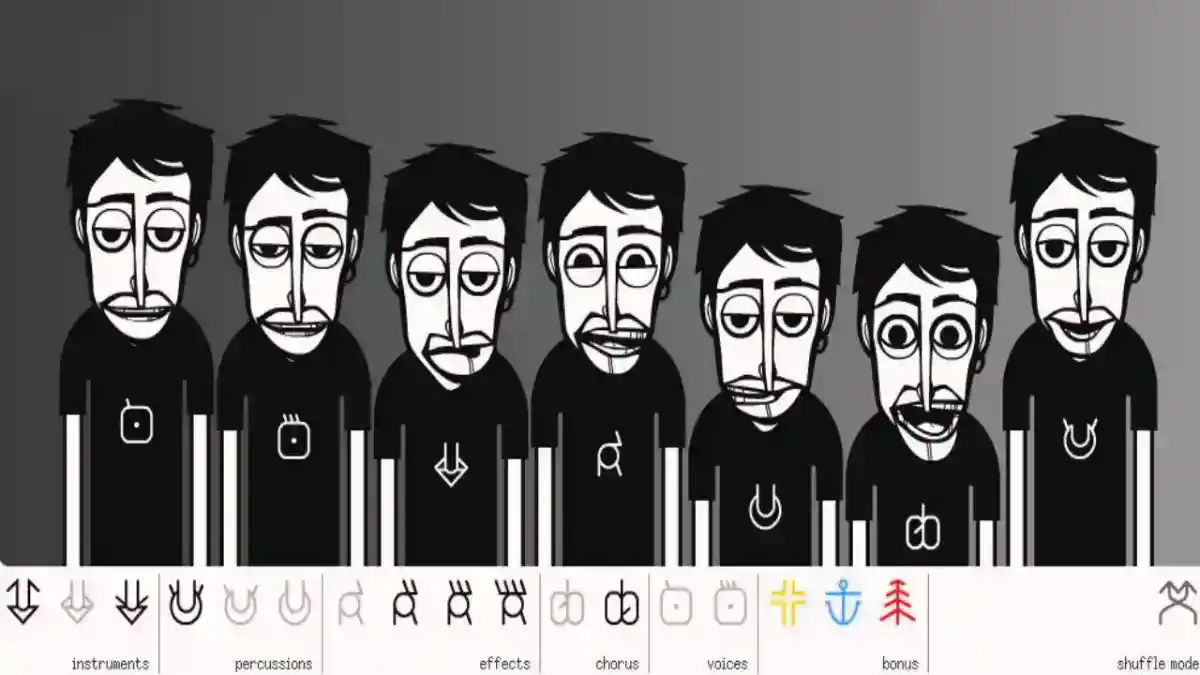
Incredibox Features: Complete Guide to Music, Mixing, Versions and Gameplay
Explore Incredibox features, including drag-and-drop music creation, animated beatboxers, versions, recording, sharing, MP3 export, and gameplay.
Blog
Fix Incredibox not working issues, including app crashes, black screen, no sound, APK not installing, recording errors, version loading, and update problems.
Incredibox not working problems can happen for different reasons, including app compatibility, low storage, APK installation errors, outdated versions, blocked permissions, device audio settings, emulator issues, or corrupted files. Since Incredibox depends on sound playback, animated characters, drag-and-drop controls, versions, recording, and saved mixes, even a small device issue can affect the experience.
Some users face problems before installation, while others face issues after opening the app. Common complaints include Incredibox APK not installing, app not opening, black screen, no sound, lag, version not loading, mix not recording, MP3 export missing, or the app crashing during gameplay.
For the main app overview and Android package details, visit the Incredibox APK page.
This guide explains the most common Incredibox problems and how to fix them on Android phones, Android tablets, PC emulators, iPhone, iPad, and APK-based installations.
| Problem | Common Cause | Quick Fix |
|---|---|---|
| APK not installing | Blocked permission, low storage, incompatible file | Enable install permission, free storage, use compatible APK |
| App not opening | Outdated version, corrupted install, device issue | Restart device, reinstall carefully, update app |
| Black screen | Graphics issue, app crash, emulator problem | Restart app, clear cache, update emulator or app |
| No sound | Silent mode, volume, Bluetooth, audio output | Check volume, disable silent mode, test speakers |
| App crashing | Low memory, old device, bad APK file | Close apps, restart device, update version |
| Version not loading | Missing content, outdated app, storage issue | Update app, check storage, reopen app |
| Mix not saving | Low storage, permission issue, recording bug | Free storage, check permissions, restart app |
| MP3 export missing | Feature unavailable or unsupported version | Check version and export support |
| Drag and drop not working | Touch issue, emulator control issue | Restart app, test touchscreen or mouse |
| App lagging | Low RAM, old device, background apps | Close apps, clear storage, use compatible device |
Incredibox may stop working when the device cannot install, open, load, play, record, or save the app correctly. The problem can come from the app file, device settings, operating system, storage, audio output, or platform compatibility.
The most common causes are:
A good troubleshooting process starts by identifying where the problem happens.
Before applying fixes, identify the stage where Incredibox stops working.
Ask this:
This helps you choose the correct fix instead of reinstalling the app unnecessarily.
Does the APK fail before installation?
Does the app install but not open?
Does the app open but show a black screen?
Does the app open but no sound plays?
Does the app work but lag or crash?
Does a version fail to load?
Does recording or Mixlist not work?
Does the problem happen only on Android, PC, or iOS?
If Incredibox APK is not installing, the issue is usually related to Android permissions, storage, compatibility, or file integrity.
Android blocks manual APK installation unless the user allows installation from the selected browser or file manager. If this permission is not enabled, the installation may fail.
To fix it:
For full installation steps, read the Incredibox APK installation guide.
Open Android settings.
Go to app permissions or security settings.
Find “Install unknown apps.”
Allow installation from the browser or file manager.
Open the APK file again.
Tap install.
The “App not installed” error is common with APK files. It can happen when the device rejects the package.
Possible reasons include:
To fix it, delete the downloaded APK file, restart your device, free up storage, download a compatible file again, and install it carefully.
Avoid installing multiple different package types over each other because package conflicts can cause installation failure.
A parse error usually means Android cannot read the APK file correctly.
This can happen if the APK file is incomplete, damaged, outdated, or not compatible with your Android version.
To fix parse error:
If the error continues, your device may not support that APK version.
Delete the current APK file.
Download the file again.
Make sure the download completes fully.
Check Android compatibility.
Try installation again.
If Incredibox installs but does not open, the issue may be caused by app data, device compatibility, outdated software, or a corrupted installation.
Try these fixes:
Users should avoid uninstalling immediately if they have saved mixes because uninstalling may remove local app data.
For update steps, read the Incredibox APK update guide.
Restart your device.
Close all background apps.
Free up storage.
Open Incredibox again.
Update the app if a newer compatible version is available.
Reinstall only if necessary.
A black screen can happen when the app opens but fails to display the interface correctly. This may be connected to graphics loading, device memory, app compatibility, or emulator issues.
To fix black screen:
If you are using PC through an emulator, update the emulator and check graphics settings.
For desktop-specific fixes, read the Incredibox for PC guide.
Close the app completely.
Restart the device.
Clear unnecessary background apps.
Check storage.
Update the app.
Try opening the app again.
No sound is one of the most common problems because Incredibox is a music app. If the app opens but audio does not play, check device audio before assuming the app is broken.
Try these fixes:
On iPhone and iPad, check silent mode, Focus settings, Bluetooth output, and app audio behavior.
For iOS-specific details, read the Incredibox for iOS guide.
Lag usually happens when the device does not have enough memory or performance. Since Incredibox uses animations and audio layers together, older devices may struggle.
To reduce lag:
Android tablets and newer phones usually provide smoother performance.
For Android device guidance, read the Incredibox for Android guide.
Close unused apps.
Restart the device.
Clear storage.
Avoid running screen recording in the background.
Use a compatible app version.
Keep the device updated.
Avoid unstable modified APK files.
If Incredibox crashes while creating a mix, the issue may be related to RAM, storage, app version, or a corrupted install.
Crashes may happen when:
To fix crashes, restart the device, close other apps, free storage, update the app, and avoid unsupported files.
Incredibox versions are different musical styles inside the app. If a version does not load, the app may have missing data, outdated files, storage problems, or compatibility issues.
To fix version loading problems:
For details about official music styles, read the Incredibox versions guide.
Restart the app.
Check storage.
Open another version.
Update the app.
Reinstall only if necessary.
Avoid clearing data if you want to keep saved mixes.
If sound icons do not work, the issue may be related to touch response, mouse control, app freeze, or incorrect drag-and-drop movement.
On Android and iOS, test whether the touchscreen works normally in other apps. On PC, test whether the emulator accepts mouse drag input.
Try this:
If the issue happens only on PC, the emulator control system may be the cause.
Restart the app.
Drag the icon slowly.
Test another version.
Restart the device.
Update the app or emulator.
Check whether the app is frozen.
PC users usually run APK files through an Android emulator. If drag and drop does not work, the emulator may not be handling mouse input correctly.
Try these fixes:
PC is useful for a larger screen, but touchscreen devices may still feel more natural for Incredibox.
If your Incredibox mix is not recording, the problem may be connected to app version, storage, permissions, or platform limitations.
Try these fixes:
Recording may not work the same way on every platform or version.
For recording and saved mixes, read the Incredibox Mixlist and MP3 export guide.
Check available storage.
Restart the app.
Create a short test mix.
Try recording again.
Update the app.
Check whether recording is supported in your version.
Avoid using unstable mods.
If the Mixlist does not show saved mixes, the recording may not have been saved correctly, or the app may not have access to stored data.
Possible causes include:
Do not clear app data unless you are ready to lose local saved content.
MP3 export may not work if the installed version or platform does not support it. Some users may expect export to appear everywhere, but export availability can vary.
If MP3 export is missing:
If the feature is not available, users may need to rely on Mixlist replay or supported sharing options.
Check whether the mix was recorded.
Open the saved mix.
Look for export or share options.
Check app version.
Update if needed.
Confirm whether the feature is supported.
Incredibox may work offline for core music creation when the app and required content are already installed. However, some features may still need internet.
Offline problems may happen when:
For full offline details, read the Incredibox offline guide.
Incredibox mods can create extra problems because they may be community-created, unsupported, outdated, or incompatible with the installed app version.
Common mod issues include:
Users should be careful with mod files and avoid suspicious APK packages.
For mod details, read the Incredibox mods guide.
Manual APK users may face update problems when the new package does not match the installed package.
Common update problems include:
To update safely, install a compatible newer APK over the existing app when possible. Avoid uninstalling unless required because uninstalling can remove saved data.
For the full update process, read the Incredibox APK update guide.
Some Incredibox APK problems come from unsafe or modified files. A bad APK file can cause installation errors, app crashes, unusual permissions, or unstable behavior.
Before installing any APK, users should check:
A music app should not request permissions that do not match its purpose.
For safety details, read the Incredibox APK safety guide.
Android problems are usually related to APK installation, storage, permissions, device compatibility, or app version.
Android fixes include:
For more Android guidance, read the Incredibox for Android guide.
Enable APK installation permission.
Free up storage.
Restart the device.
Use a compatible APK.
Update the app.
Check volume and audio output.
Avoid suspicious modified files.
PC problems usually come from emulator issues. Since APK files are made for Android, Windows users need an emulator to run them.
PC fixes include:
If the PC is old or slow, Incredibox may lag or crash inside the emulator.
iPhone and iPad users should remember that APK files do not install directly on iOS. If someone is trying to install an APK on iPhone, that is the problem.
For iOS issues, check:
For full Apple device information, read the Incredibox for iOS guide.
When Incredibox is used by children, problems may come from restricted settings, parental controls, storage limits, or disabled sharing.
Parents should check:
For parent-focused guidance, read the Incredibox for kids guide.
Reinstalling can fix some problems, but it should not always be the first step.
Reinstalling may remove saved app data depending on the device and platform. If you have recorded mixes, be careful before uninstalling.
Try these first:
Reinstall only when basic fixes fail.
Restart the app.
Restart the device.
Free storage.
Update the app.
Check audio settings.
Test another version.
Check permissions.
Use this order to fix most Incredibox problems:
This order reduces the chance of losing saved mixes or creating new installation conflicts.
Restart the app.
Restart the device.
Check storage.
Check volume and audio output.
Check app permissions.
Update the app.
Test another version.
Check APK compatibility.
Avoid unsafe mods.
Reinstall only if necessary.
Incredibox APK may not install because of low storage, blocked unknown app permission, incompatible Android version, corrupted APK file, or package conflict.
A black screen can happen because of app loading failure, graphics issues, low memory, corrupted installation, or emulator problems.
No sound may be caused by low media volume, silent mode, Bluetooth output, device audio settings, emulator audio settings, or app playback issues.
The app may crash because of low RAM, old device hardware, outdated app version, corrupted APK file, unstable mod, or low storage.
Versions may fail to load because of missing content, outdated app files, storage issues, compatibility problems, or incomplete installation.
A mix may not save because of low storage, recording failure, unsupported version, app permission problems, or app data issues.
MP3 export may be missing if the installed version, platform, or app setup does not support export.
Core music creation may work offline when the app and required content are already installed, but sharing, updates, and online features may need internet.
No. APK files are made for Android and cannot be installed directly on iPhone or iPad.
Only uninstall as a last option. Uninstalling may remove saved mixes or app data depending on your device.
Incredibox not working issues usually come from installation errors, storage limitations, app permissions, outdated versions, device compatibility, audio settings, emulator problems, or unsafe APK files. The best fix depends on where the issue happens.
If the APK does not install, check permissions, storage, compatibility, and file quality. If the app opens but shows a black screen, no sound, or crashes, check device performance, audio settings, and app version. If recording, Mixlist, or MP3 export does not work, check storage, feature support, and app version.
The safest troubleshooting process is to restart first, check storage and audio, update carefully, avoid suspicious modified files, and reinstall only when necessary.
Explore Incredibox features, including drag-and-drop music creation, animated beatboxers, versions, recording, sharing, MP3 export, and gameplay.
Learn how Incredibox works on Android phones and tablets, including APK setup, compatibility, features, gameplay, storage, updates, and fixes.
Learn how to use Incredibox on PC with Android emulator setup, controls, compatibility, performance tips, APK installation, and common fixes.